 Inkline
1. Install and first run
- Install Inkline from Google Play and open it. No sign-up: you go straight to a short setup.
- Choose what you want to use it for. Tick one or more plans (for example Weight loss and GLP-1 treatment and Gout and uric acid), or skip.
- Check the suggested values. Untick what you don't need, or tap Add another value to search the library. You can search in English or Czech.
- Pick your units. Body measurements (metric or imperial) and lab results (European/SI or US) are separate choices, because many people mix them.
- Optional: enter your starting values, set up your medication, and switch on app lock.
You can rerun setup any time from Settings. Rerunning only adds suggestions; it never deletes anything.
2. Logging values
Tap the yellow + button, pick a value and type the number. Date and time are filled in for you, and you can change them to log something from the past.
- Each entry is either Home (your own scale, cuff or meter) or Lab / doctor. They're kept as separate series and never averaged together.
- Water and protein are added up per day; you can still edit each entry.
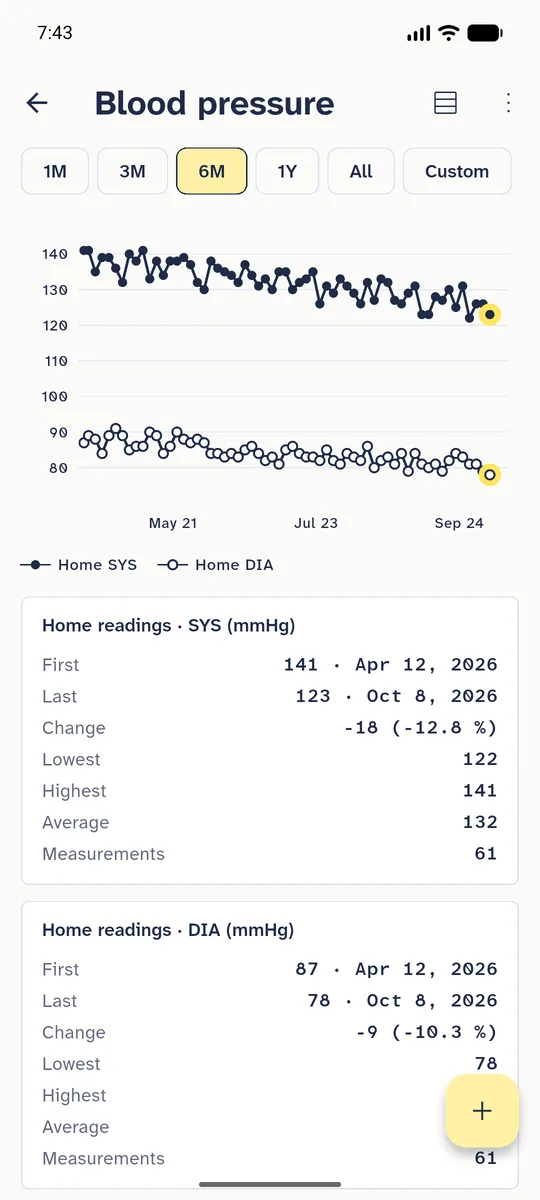
- Tap any card on Home to open its chart. Pick the time range at the top (1 month to everything, or your own dates). Tap the table icon to see every entry.
- Choose what sits at the top of Home, and in what order, with Edit home.
3. Entering lab results
Copy the result exactly as it is printed: the number, the unit and, if you like, the reference range the lab printed next to it.
- If your lab uses a different unit than you chose, pick the lab's unit when entering. Inkline converts it exactly, and keeps what you typed.
- Results like > 1.5 or < 0.3 can be entered as they are.
- The lab's reference range is drawn on the chart as a band. It belongs to that lab result; Inkline itself never says what is normal.
4. Your own targets
On any value you can set a target of your own: one goal (a goal weight) or a limit (for example uric acid below 360 µmol/L, if that is what your doctor gave you). It shows as a dashed line and as the distance still to go. Inkline ships no targets of its own.
5. Medication and injections
- Pick your medicine from the list or choose Other. Inkline pre-fills the schedule and pen details from the official product information. Check them against your prescription.
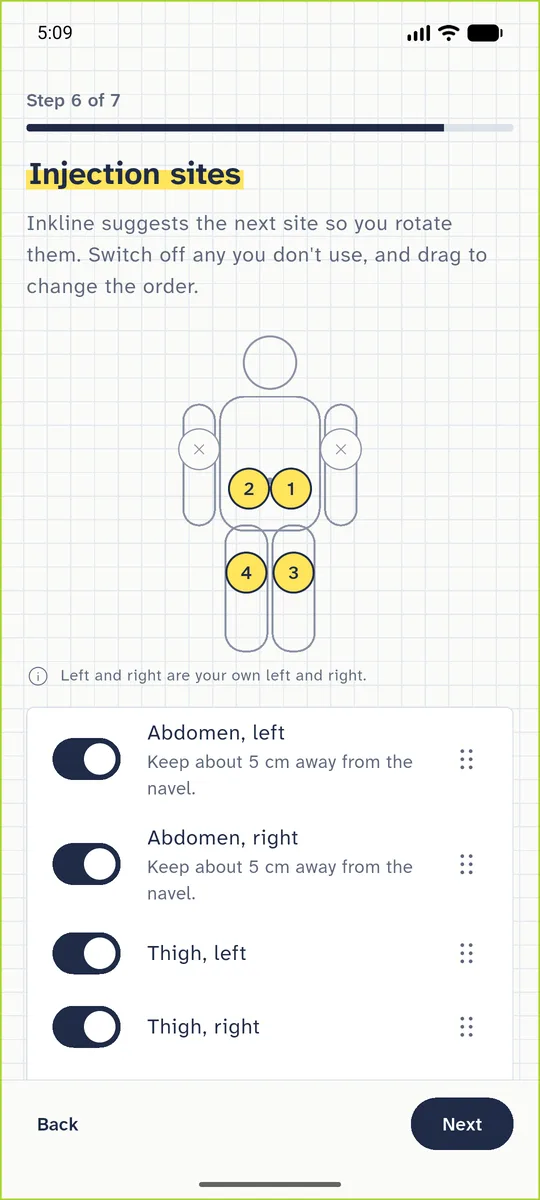
- Log each dose from Home or straight from the reminder. The next injection site is suggested in turn; switch off sites you don't use.
- When your doctor changes the dose, add the change in the medication screen. Inkline records doses; it never decides them.
- Side effects can be logged in the diary and later viewed by dose.
6. Reminders that arrive on time
Reminders are local notifications from your phone, so they work offline. Android sometimes stops apps in the background to save battery. To be sure reminders arrive:
- Allow notifications when Inkline asks (or in Settings → Apps → Inkline → Notifications).
- Allow Alarms and reminders for Inkline if your phone asks, so reminders come at the exact minute.
- On Samsung phones: Settings → Apps → Inkline → Battery and choose Unrestricted. Also make sure Inkline is not in Battery → Background usage limits → Sleeping apps.
Other brands have similar settings. The independent site dontkillmyapp.com shows where they are for each phone maker.
7. Doctor visits and the report
- Add a visit with date, doctor and the questions you want to ask. Add to calendar opens your calendar app with the event filled in; Inkline doesn't read your calendar.
- After the visit, write down what was agreed.
- Settings → Export creates a PDF report or CSV file for the period and values you choose. You decide whether diary notes are included.
An exported PDF or CSV is not encrypted. Share it only with people you trust, and delete copies you no longer need.
8. Diary
Write down anything worth remembering: how you feel (one tap on a face), a note, and tags such as Side effect, Food or Sport. The Gout flare template adds the joint, pain level and duration. Diary entries appear as small marks under your charts.
9. Privacy features
- App lock (Settings → Privacy) uses your phone's own fingerprint, face or PIN. There's no extra PIN to forget. It protects against someone who picks up your phone, not against someone who knows your phone PIN.
- Discreet notifications show only "Reminder from Inkline" on the lock screen, without the medicine name or injection site.
- Widget: choose Show values, Tap to reveal (values for 15 seconds) or Cover only.
10. Import from Health Connect
If a scale, blood pressure monitor or watch saves data to Health Connect, Inkline can read weight, body fat, blood pressure, resting heart rate and blood glucose from it. It's off until you switch it on in Settings. Imported values are saved as home readings, and nothing is written back.
11. Back up right away
Your notebook lives only on your phone. Make your first backup as soon as you've entered some data, and keep the file somewhere other than the phone. Backup and restore, step by step.